A fast, single-process TUI that keeps your AWS SSO credentials fresh — automatically — while it’s open.
The 4:55 PM problem
It’s late afternoon. A deploy is halfway out the door. The pipeline stops dead:
An error occurred (ExpiredToken) when calling the AssumeRole operation:
The security token included in the request is expired.
I know exactly what’s happened, because it happens to me twice a week. My AWS SSO token quietly expired. Now I get to run the ritual:
aws sso login --profile acme-prod-adminA browser tab fires open. I click “Confirm and continue.” I click “Allow.” I go back to the terminal. I re-run the deploy. It works — until the next token expires.
Multiply that by a dozen profiles across prod, staging, a data platform, and a couple of sandbox accounts, and you get the real problem: I had no idea, at any given moment, which credentials were still alive and which were about to die. ~/.aws/config is a wall of text. The AWS CLI tells you nothing until something is already broken. So I’d either log in to everything “just in case” (a dozen browser dances) or get surprised mid-task. Both are terrible.
I wanted a single screen that showed me every profile, its live status, and how long until it expired — and that would quietly keep the profiles I actually use topped up. So I built it.
It’s called awssesh. npx awssesh, and you’re in.
One screen, everything at a glance
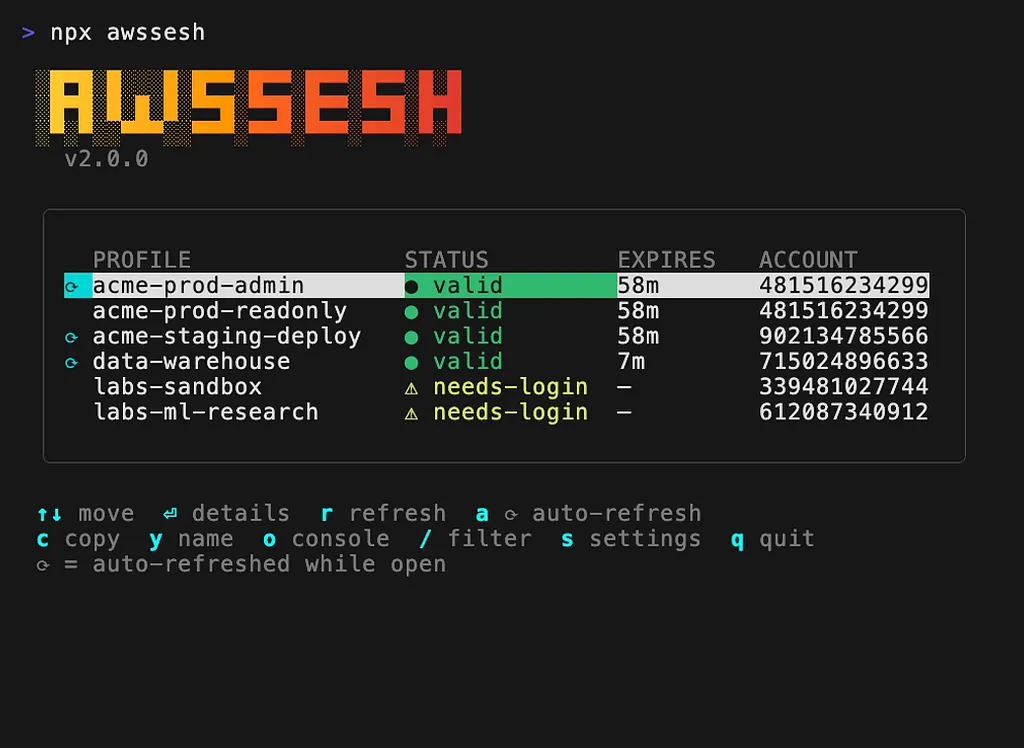
awssesh opens straight into a k9s-style, list-first dashboard (that’s the screen up top). No menus to dig through — every SSO profile from your ~/.aws/config, with a live status and an expiry countdown, the moment it launches.
- 🟢 valid — credentials are good; the EXPIRES column counts down (58m, 7m…).
- ⚠️ needs-login — this session needs an interactive browser login.
- ⟳ next to a profile means it’s pinned for auto-refresh (more on that below).
Move with ↑/↓ or j/k. That’s the whole mental model. The thing I most wanted — “which of these is about to break?” — is now answered in one glance instead of a guess.
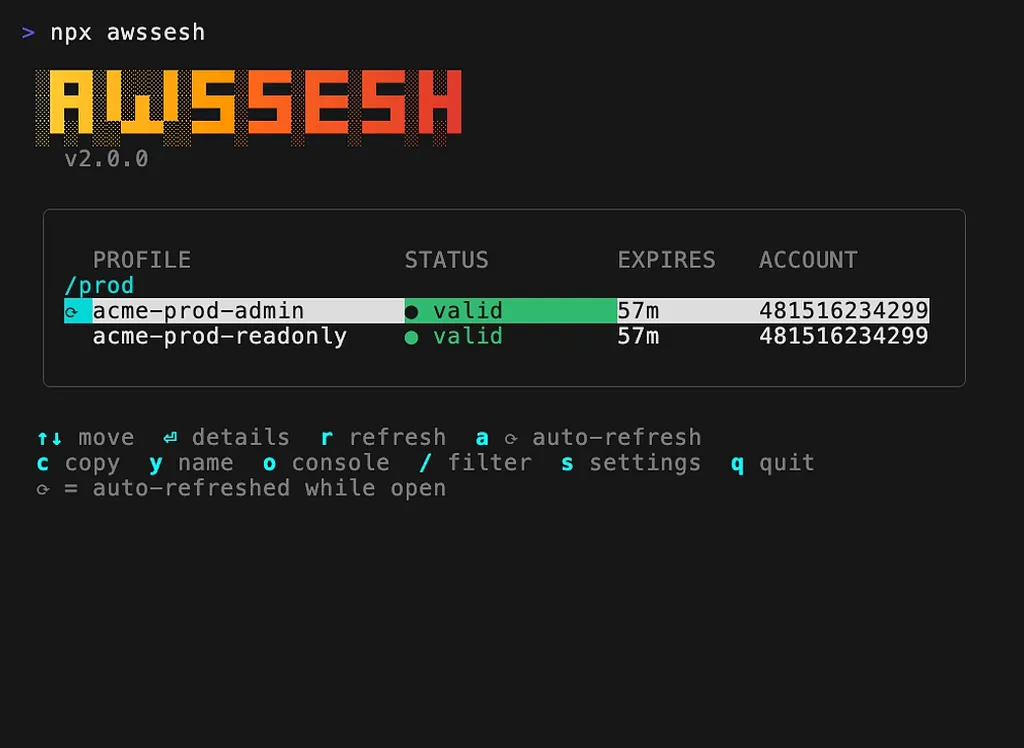
When the list gets long, hit / and filter by name:
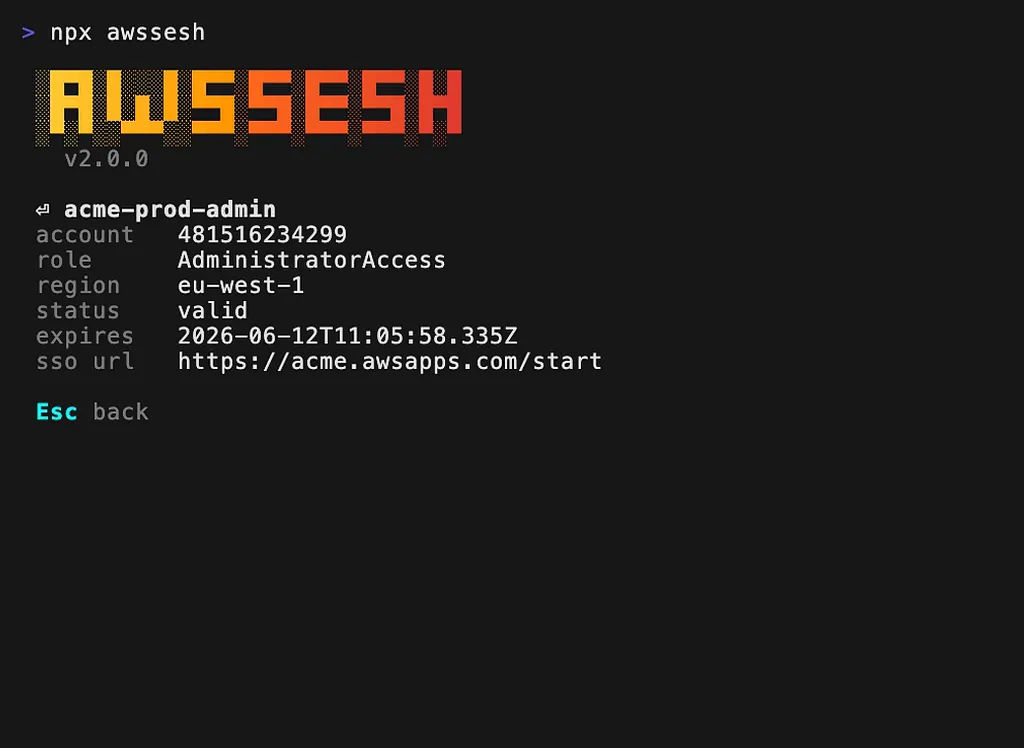
Press Enter on any profile to see the full picture — account ID, role, region, exact expiry, and the SSO start URL:
The part that actually fixed my life: auto-refresh
Here’s the feature that turned awssesh from “nice list” into “I never think about this anymore.”
Navigate to a profile you care about and press a. That pins it with a ⟳ marker. From then on, while the dashboard is open, awssesh watches that profile’s role-credential expiry and refreshes it just before it would expire — by default, within a 5-minute lead window.
No fixed-interval polling hammering AWS every 30 seconds. No wasted refreshes. It looks at the actual expiry timestamp and acts only when it needs to. The credentials for my pinned prod and data-warehouse profiles are simply always ready when I reach for them.
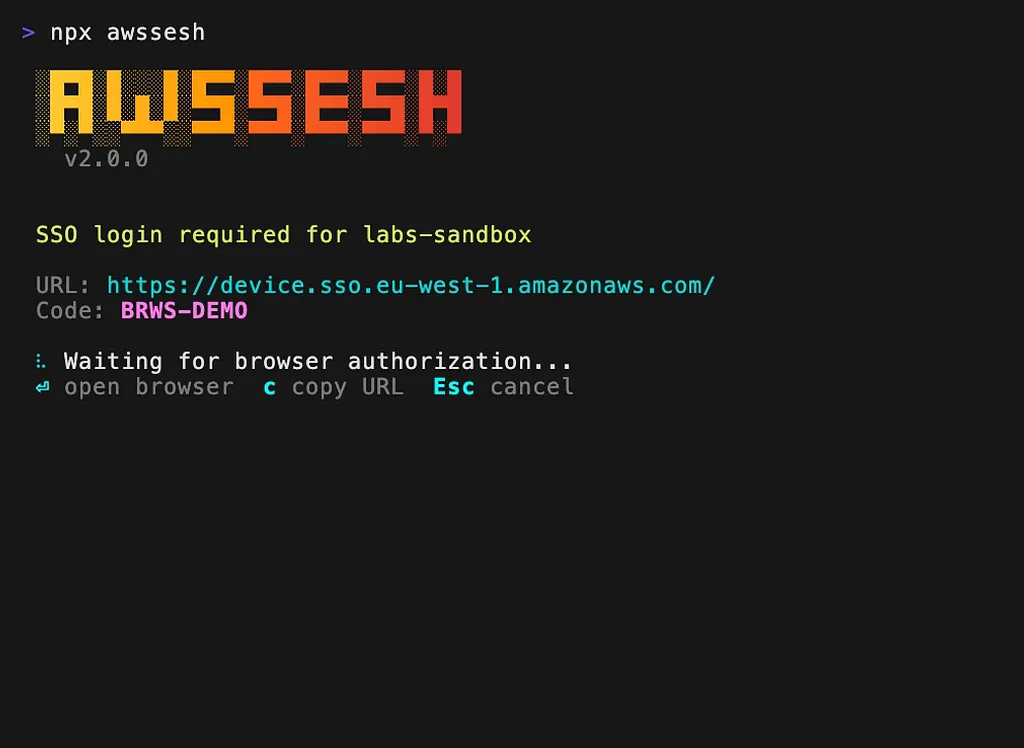
And when a refresh genuinely requires me — i.e. the underlying SSO session needs a fresh browser login — awssesh doesn’t fail silently and it doesn’t nag. It sends a desktop notification:
awssesh: acme-prod-admin needs login…and drops me into a clean device-login screen where I can copy the URL or open the browser in one keystroke:
The result: I get the convenience of background refreshing without an actual background daemon lurking on my machine. awssesh is a single process — when you press q, it’s gone. Nothing to manage, nothing to leak, nothing left running after you close it.
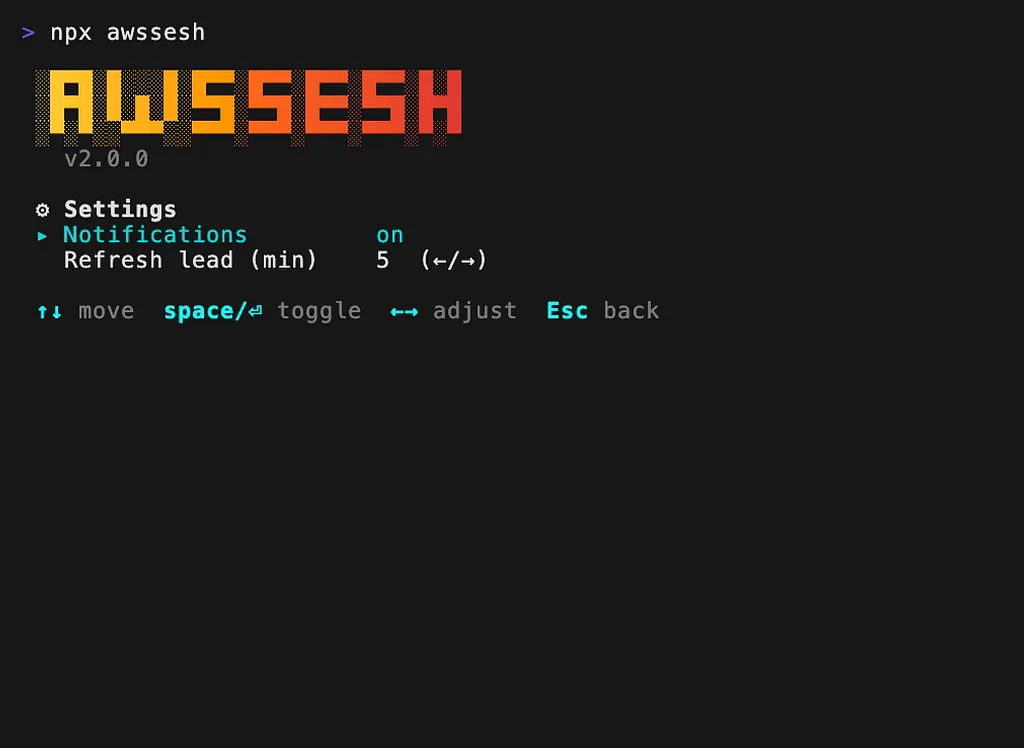
You can tune the behavior in Settings (s) — toggle notifications and set the refresh lead time:
One keystroke for everything else
The whole point of a TUI is that you never leave the keyboard. From the dashboard:
KeyActionaToggle ⟳ auto-refresh (pin/unpin)rRefresh the current profile nowcCopy export AWS_* env vars to clipboardyCopy the profile nameoOpen the AWS console in your browser/Filter profilessSettings · q Quit
That c shortcut is the one I use constantly — it copies a ready-to-paste block of export AWS_ACCESS_KEY_ID=… AWS_SECRET_ACCESS_KEY=… AWS_SESSION_TOKEN=… for the selected profile.
And here’s the move that replaced aws sso login in my muscle memory completely. awssesh ships a few non-interactive subcommands too, including export:
# Inject a profile's credentials straight into your current shell
eval $(awssesh export prod)
No copy-paste, no browser, no TUI even — the credentials are just in your shell. There’s also awssesh status to print everything and exit (great for scripts), and awssesh refresh [profile] to top one up — or all your pinned profiles — on demand.
See it all together:

Try it in 10 seconds
If you already have AWS CLI v2 configured with SSO profiles in ~/.aws/config, there’s nothing else to set up:
# Run it without installing anything
npx awssesh
# ...or with Bun
bunx awssesh# ...or install it globally
npm install -g awsseshThat’s the entire onboarding. It reads your existing config, shows you the dashboard, and you pin what you care about.
Why I built it this way
I had earlier versions of this idea that were more clever — background daemons, an embedded web dashboard, the works. I threw all of it out. What I actually wanted, every single day, was dead simple: one screen that tells me the truth about my credentials, keeps the important ones alive while I’m working, and gets out of the way when I quit.
That’s awssesh. It’s free, open-source (MIT), and built with Bun + React + Ink.
- ⭐ GitHub: github.com/tux86/awssesh
- 📦 npm: npmjs.com/package/awssesh
If AWS SSO tokens have ever blown up a deploy at 4:55 PM, give it a npx awssesh. And if it saves you a browser dance or two, a star on the repo means a lot.
Made with ❤️ by tux86.